
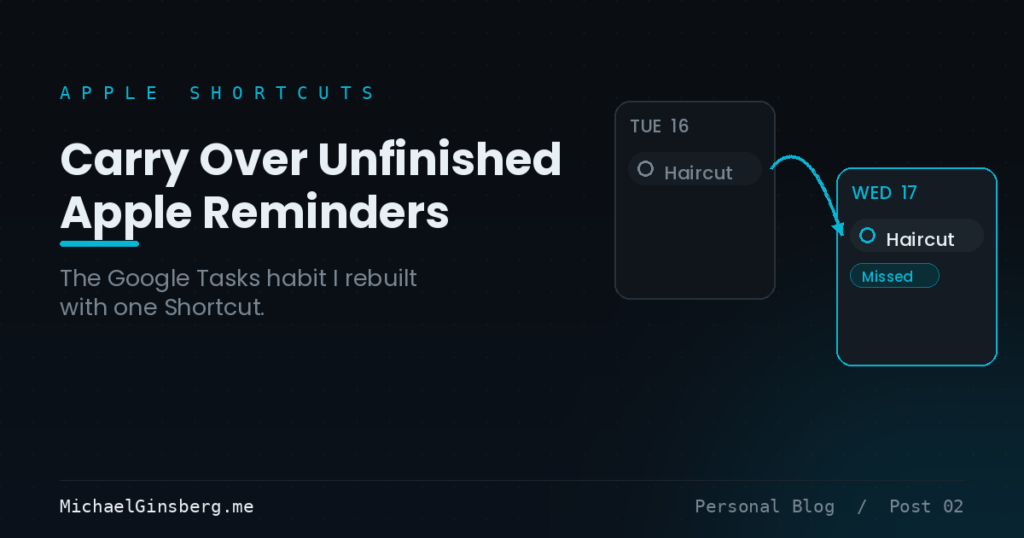
For years my daily driver for getting things done was Google Tasks. I jotted down what I needed to handle, checked items off through the day, and the part I loved most was simple: anything I did not finish rolled forward on its own. If I added “get haircut” on Tuesday and never made it to the barber, the task showed up again Wednesday. Nothing slipped through the cracks.
Then Apple gave Reminders the ability to appear right inside the Calendar app. Since I live in the Apple ecosystem while still keeping Google Calendar around, I moved my tasks over to Apple Reminders. It was a great move in almost every way, with one exception. Apple Reminders does not carry anything over. A task you skip just sits on the day you assigned it, quietly getting older while you scroll right past it.
This is the small Apple Shortcuts automation I built to bring that carry over behavior back. It runs every night at 11:55 PM and sweeps any unfinished reminder forward to the next day, so a task you forgot never gets stranded in the past.
What Google Tasks got right
Google made this effortless. Open Google Calendar and any task you did not complete keeps surfacing as a pending item, day after day, until you either finish it or move it yourself. You never had to think about it. The calendar simply refused to let an unfinished task fall off the bottom of the week.
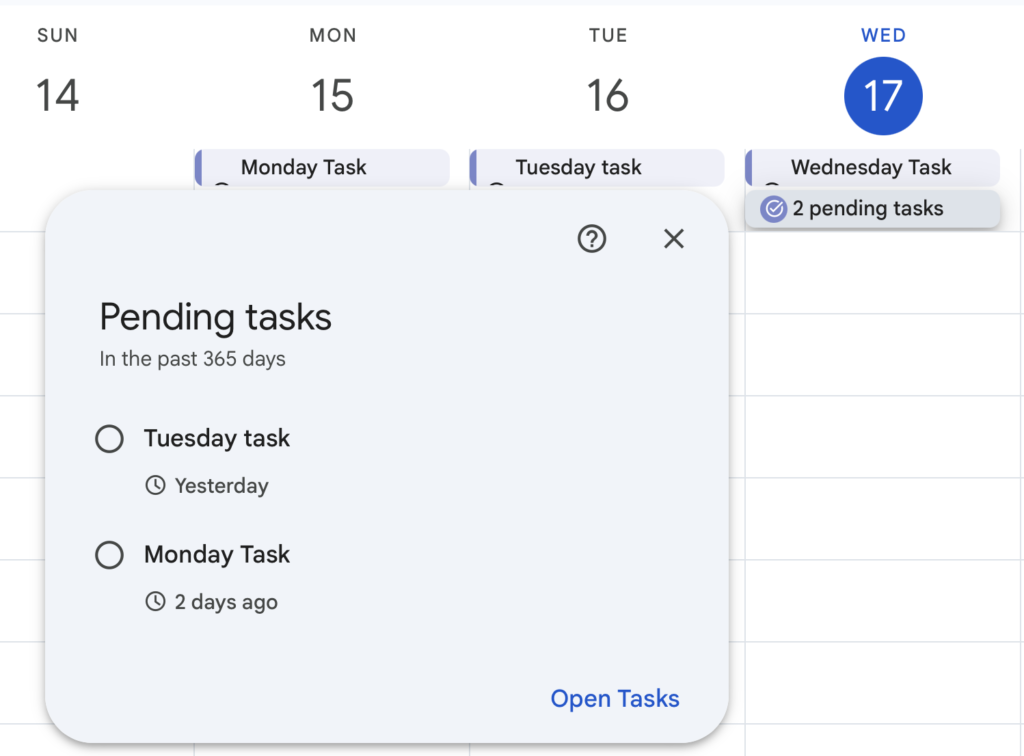
Google Calendar surfaces unfinished items as “pending tasks” and keeps them in front of you until they are done.
Where Apple Reminders leaves you stranded
Apple Reminders is happy to show your tasks on the calendar, which is exactly why I switched. The problem is that it treats the due date as final. A task assigned to Monday stays on Monday even after Monday is long gone. By the middle of the week you are looking at three separate days, each holding a task you never touched, and none of them are competing for your attention today.
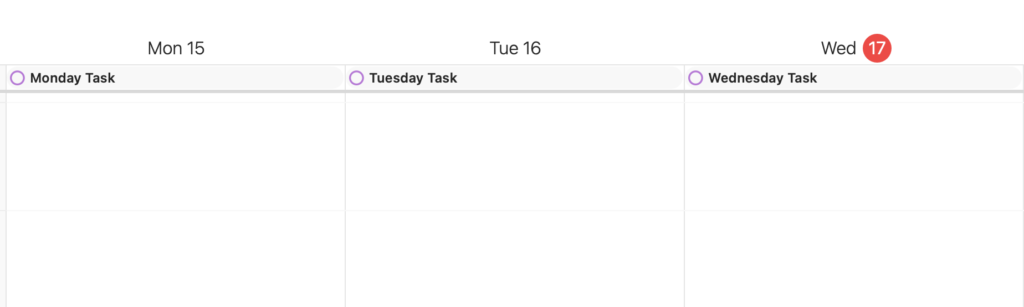
Out of the box, Apple Reminders pins each task to its original day. Skip one and it stays put, easy to scroll past and easy to forget.
The fix: a five action Shortcut
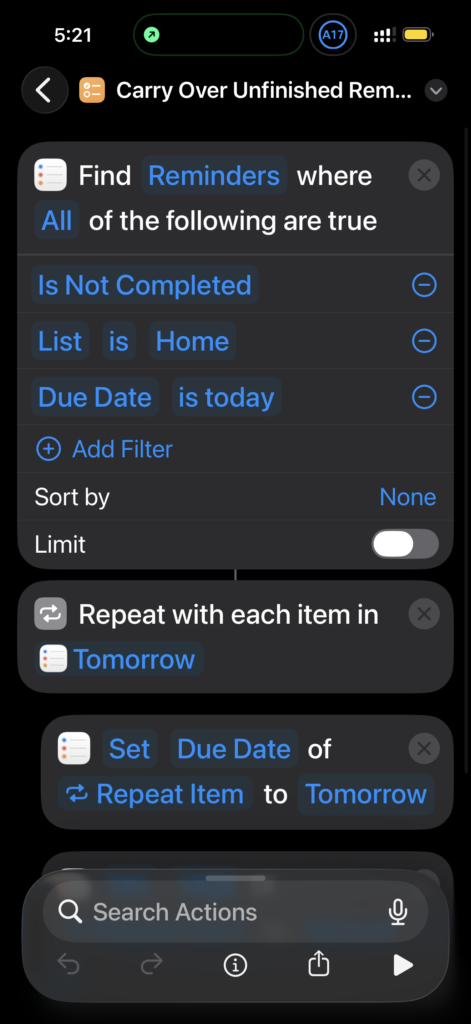
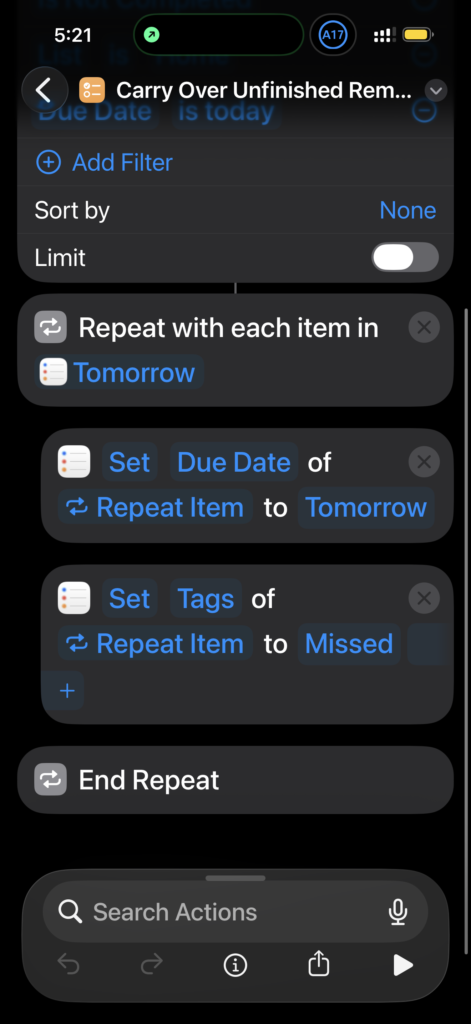
Apple Shortcuts solves this nicely. The idea is short: find everything that was due today and is still not done, then push each of those items to tomorrow. I also tag each carried over task as “Missed” so I can see at a glance what keeps slipping. Here is the whole thing, in two parts.
Step by step setup
Before you start, one optional bit of prep. If you want carried over tasks flagged, open the Reminders app and create a tag named “Missed.” You only do this once. If you skip the tag, just leave out the “Set Tags” step below and everything else works the same.
Build the Shortcut
- Open the Shortcuts app and tap the plus in the top right to create a new shortcut. Give it a clear name like “Carry Over Unfinished Reminders.”
- Add the Find Reminders action. Set it so All of the following are true:
- Is Not Completed
- List is Home (use your own list here, or remove this filter to sweep every list at once)
- Due Date is today
- Add the Repeat with Each Item action and point it at the result of your Find Reminders step. Every action you add next runs once for each unfinished reminder it found.
- Inside the repeat, add Set Due Date. Set the due date of the Repeat Item to Tomorrow. Because “Tomorrow” carries a date but no specific time, the reminder lands as an all day item on the next day.
- Still inside the repeat, add Set Tags. Set the tags of the Repeat Item to Missed. This step is optional but makes carried over tasks easy to spot.
- Shortcuts closes the loop with End Repeat automatically. That is the entire shortcut, five actions and done.
Run it automatically at 11:55 PM
- In Shortcuts, switch to the Automation tab at the bottom.
- Tap the plus to create a new automation and choose Time of Day.
- Set the time to 11:55 PM and the frequency to Daily.
- Choose Run Immediately, then turn off Notify When Run so it works silently in the background.
- For the action, add Run Shortcut and select Carry Over Unfinished Reminders.
- Save it. You are finished.
Why 11:55 PM? It is the last useful moment of the day. Anything still unchecked by then clearly did not happen, so it gets pushed forward right before the date rolls over.
The payoff
The morning after the automation runs, open Calendar and every task you did not finish is waiting on today, not buried back on the day you first added it. Tasks I assigned on Monday and Tuesday that never got done are now sitting on Wednesday with everything else, where I will actually see them.

After the nightly sweep, every unfinished task lands on today. The Monday and Tuesday items that never got done are now front and center on Wednesday.
Pair that with the “Missed” tag and you get a quiet running record of what keeps slipping. That turns out to be useful feedback all on its own, a gentle hint about what you keep overcommitting to.
A note on timed versus all day reminders
One behavior is worth knowing up front. If a reminder was an all day task, it carries over as an all day task. If a reminder had a specific time, it still carries over, but it becomes an all day reminder on the new day rather than keeping its old time. That is a side effect of setting the due date to “Tomorrow,” which carries the date without a time. For a daily carry over sweep I actually prefer this, because a time I already blew past is no longer meaningful. The point is simply to not lose the task.
Closing thought
Coming from Google Tasks, automatic carry over was the one habit I was not willing to give up, and a five action shortcut brought it back into the Apple ecosystem. If you live in Apple Reminders and keep losing track of the things you skipped, give it a try. Set it once, forget it, and let your phone do the nagging.
Frequently asked questions
Will this create duplicate reminders?
No. The shortcut edits the due date on the reminder that already exists. It does not create a new one. The same task simply moves forward a day.
What happens if I finish a task before 11:55 PM?
It is skipped. The Find Reminders step only grabs items that are not completed, so anything you checked off during the day stays right where it was.
Can I carry over from more than one list?
Yes. Remove the “List is Home” filter to sweep every list, or add separate filters for the specific lists you want to include.
Does a timed reminder keep its time after it moves?
No. A timed reminder becomes an all day reminder on the next day, because the shortcut sets the due date to “Tomorrow” without a time attached.
Do I have to use the Missed tag?
No, that step is optional. It is just a handy visual flag. Delete the Set Tags action and the rest of the shortcut behaves exactly the same.
Will it run on its own, or do I have to tap something?
It runs on its own. With Run Immediately turned on and Notify When Run turned off, the Time of Day automation fires in the background without any tap from you.
Can I change the time it runs?
Yes. Edit the Time of Day automation and set any time you like. I use 11:55 PM because it catches everything right before midnight, but an early morning run works just as well.